“Our office has appreciated your company support and quite honestly have continued to enjoy the ease of use of your software especially within the AutoCAD Architecture environment / thanks for your continued tech support and providing a simple to use render package to help convey designs to our clients.”
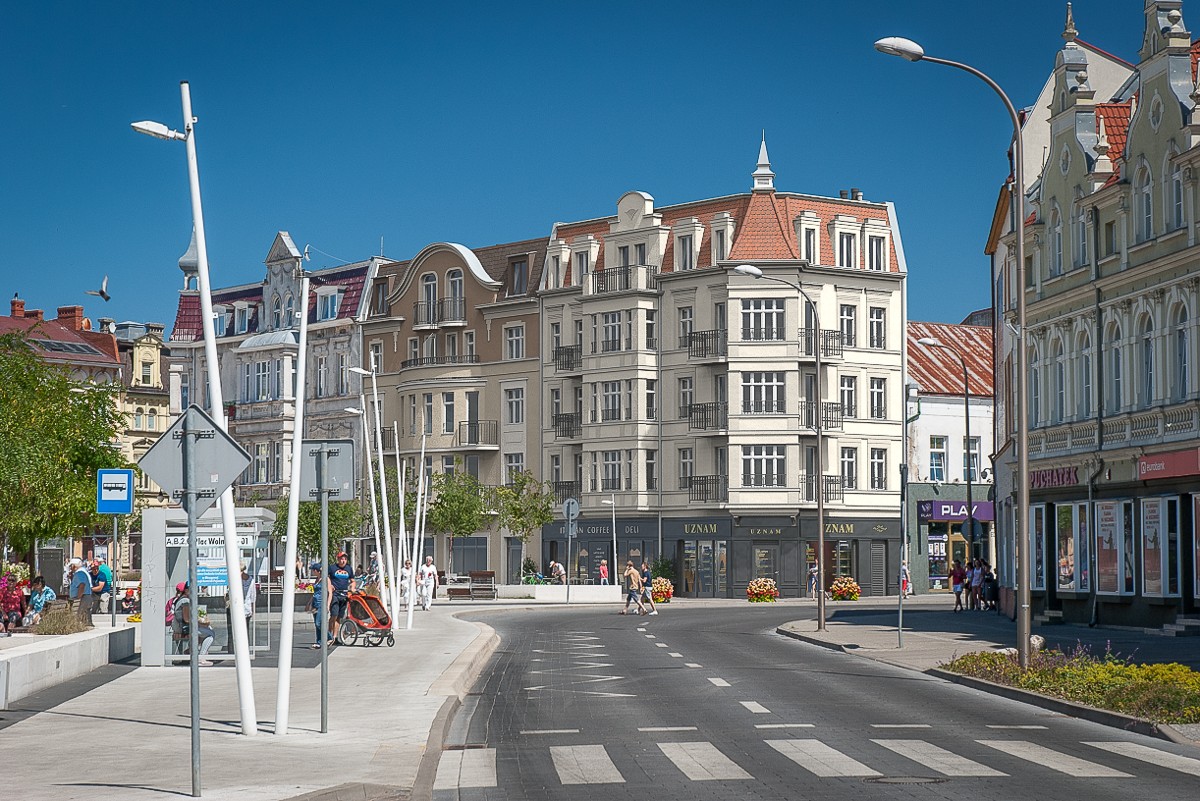
How Easy it to Render an Amazing Image with nXtRender?
Step 1 – Open you 3D Model
I am text block. Click edit button to change this text. Lorem ipsum dolor sit amet, consectetur adipiscing elit. Ut elit tellus, luctus nec ullamcorper mattis, pulvinar dapibus leo.
Step 2 – Set the View You Want to Render
I am text block. Click edit button to change this text. Lorem ipsum dolor sit amet, consectetur adipiscing elit. Ut elit tellus, luctus nec ullamcorper mattis, pulvinar dapibus leo.
Step 3 – Push the Green Rendering Button
I am text block. Click edit button to change this text. Lorem ipsum dolor sit amet, consectetur adipiscing elit. Ut elit tellus, luctus nec ullamcorper mattis, pulvinar dapibus leo.
Before
After
“”
“I just love how your programs keeps on having better updates each month and one of the best customer support on forums.”
“IRender nXt only took me a few days to fully understand and learn all about lighting before I was producing renderings for our clients here at Hussmann. It’s incredibly powerful and the easiest renderer to learn and use for SketchUp.”
“IRender nXt provides me with the ability to provide quality renderings that help me convey my designs and win business.”
“Your renderer is the best one I’ve ever used for SketchUp. IRender gives enough control over render settings and materials without making it rocket science.”
“I’m teaching this stuff and can barely keep up with the students sometimes so my learning curve has to be accelerated sometimes.”
“…and love, love, your program (nXtRender for AutoCAD) – am very happy that I have upgraded.”
“Thank you so much. Real customer service. Amazing.”
“I have used both Twilight and IRender nXt. Twilight is not as intuitive. It starts off very easy to use but get more complex when you want to assign materials and lights.”
“I love the ability to add reflection qualities to my renderings.”
“Just wanted to say I’ve really enjoyed using IRender nXt. It’s a very quick and easy rendering plugin”
“Over the years I’ve found that Render Plus customer service has always been exceptional”
“So here it is. Renders were done in iRender NXT and are as yet basic. …IRender is able to handle this 81MB beast, which is more than can be said of Vray… exporting 2D images from SU itself is rather more of a problem too… I did these renders in the trial version of IRender, which runs out in 6 days, so I’m now considering buying it. It does have good RPC plant options that I’d love to experiment with! … Here’s another render. I love this feature of IRender, it actually does true orthogonal renders.”
“It (nXtRender for AuotCAD) is a great program, and a far sight quicker to setup than AutoCad render.”
“I love the render program (IRender nXt).”
“Your program (IRender nXt) is very nice and our customers are always pleasantly surprised.”
“I love your software and our students create fantastic renderings”
“What is remarkable with this is how many high-quality images can be produced in such a short timeframe with IRender SU.”
“I am a biomedical engineering graduate student and new to 3D modeling and rendering. I made a model in SketchUp for a scientific paper but it felt like it was missing something. I wanted to give it a little more “wow” factor. That’s when I stumbled upon your software package. Using your tutorials I was able to get off the ground quickly and make an amazing rendered image for the paper. Thanks for a great product.”
“I always enjoy when a client is amazed that their house looks “just like the renderings!””
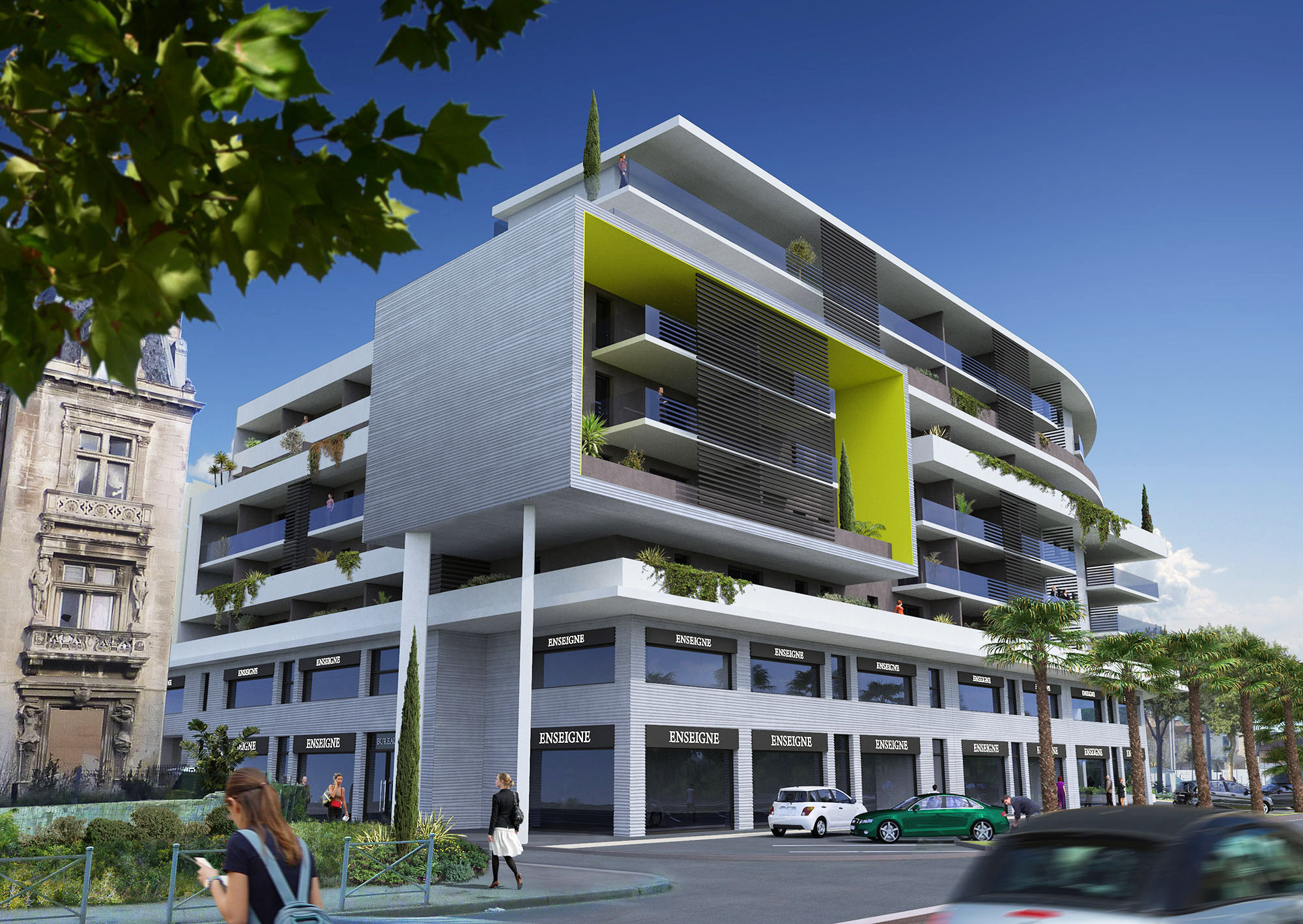
Create your model with AutoCAD, then render it with nXtRender. Easy to learn and use, you’ll be up and running in no time. There’s a full range of features that you will discover as you gain experience and want to extend your rendering skill. Some of the key properties in creating great renderings is lighting, shadows, and reflections. We make this easy through one click material presets, drop in lighting, and you can even adjust the lighting without rendering the model again.
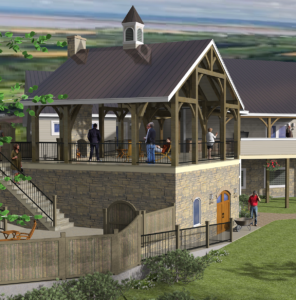
- Compatible with all versions of AutoCAD (not LT)
- Simple to add materials library and one-click presets
- Lighting components to just drop in and render
- Multiple lighting channels – even adjust color and brightness after rendering is complete
- Support HDRi images for simple realistic lighting and backgrounds
- Render amazing images and panoramas
- Add or create 2D/3D Plants for realism and fast rendering
- Create animations with a simple setup wizard
Choose from 5,000 standard materials or create your own. The Materials Wizard provides multiple controls for a single material, including transparency, index of refraction for glass materials, and more. Use bump maps to give a material (with or without textures) a different appearance.
- Material Wizard
- Quick Presets – plastic, mirror, glass, water, etc
- Advanced materials properties if you need them
- Advanced reflections – mirrors, glass, hardwood floors, etc
- Realistic textures with bump maps to create realistic bricks, blocks, roofs, water, and more
- Water materials from smooth to rough and shallow to deep
- Texture wizard
Lighting in 3D rendering can make all of the difference in creating realist renderings. This is why we focus a realist lighting anyone can create. You can use our drag and drop lights, lighting presets, or quickly make your own custom lights.
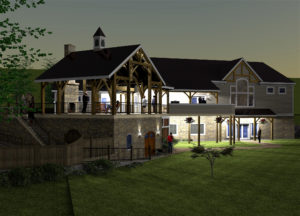 Drag and drop, render ready interior and exterior lights, which are ready for you to set brightness, color, and lighting channel
- Ceiling light to lamps light wizard to walk you through light creation
- Lighting rendering presets for studio, interior, exterior and more
- HDRi images provide quick drop in high quality lighting setup and background scenes
- Stop re-rendering for lighting changes! Our rendering software allows you to change lighting color, intensity, and even on or off for quick changes after rendering.
In addition to stunning, high quality rendered stills, nXtRender also provides tools to render panoramas and animations/walkthroughs. While your clients will love your renderings, watch their faces when you show them an animated walkthrough or panorama.

- Animations – Create a high-quality animation of an AutoCAD model with nXtRender! Quickly setup your animation by creating the scenes to be included, define frames per second and image size, then render the resulting frames. Once frame rendering is complete you can simply create the movie!
- Panoramas – Create a full 360 degree panoramic image which can be turned into a movie and embedded in a web page. A panoramic image is created by rotating the camera while rendering to create a full 360 x 360 degree image. Panoramas work best with large interiors, or with exteriors which have a central point which lets you view the full model.
The nXtRender Image Editor enables you to easily make changes to an image after rendering is complete without having to re-render or use third party software.
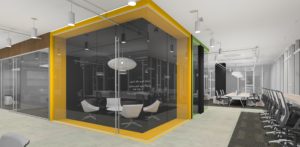 Use the tools available via the Image Editor toolbar:
- Lighting Channels – Adjust the effect of sun, sky or groups of lights.
- Lighting Adjustments – Control image contrast, burn, color saturation and brightness.
- Material Channels – Adjust the color or luminance of pixels rendered.
- Image Filters – Choose from a range of filters to apply a dramatic new look.
- Haze and Fog – Apply haze or fog.
- Depth Blur – Adjust the near or far focus of your image.
Showcase