
SpaceDesign Features
SpaceDesign Features'
Contents
- 1 Assign Attributes to Components
- 2 Report on Dynamic Component Attributes
- 3 Create a report or .CSV file of attributes in the model
- 4 Create a PDF Report
- 5 Select Entities from Attributes
- 6 Save Attributes in SKP model for Component
- 7 Calculate Areas for component
- 8 No Limit on number of attributes
- 9 Include an image of the SketchUp model in the report
- 10 Define attributes based on size of component instances
- 11 Calculate extended cost or total weight of components
- 12 Perform Calculations on attributes
- 13 Filter Components for report
- 14 Drill into Groups and Components for nested components
- 15 Place multiple attributes in a report Cell
- 16 Add custom report rows
- 17 Filter Components for report
- 18 See also
Assign Attributes to Components
| Assign Attributes to Components | |
|
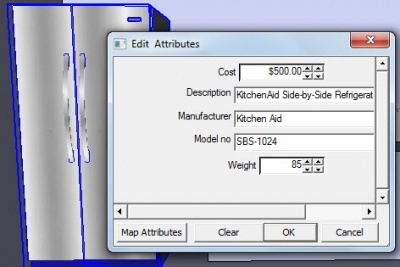
Attributes are stored in Component definitions.
See: Edit Attributes |
|
Report on Dynamic Component Attributes
| Report on Dynamic Component Attributes | |
| '
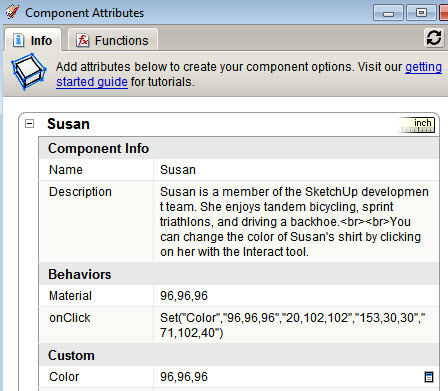
You can view and report on Dynamic Component attributes.
|
|
Create a report or .CSV file of attributes in the model
| Create a report or .CSV file of attributes in the model | |
|
Create a report from Dynamic Components, other Components using SpaceDesign Attributes, and Groups with Attributes.
|
|
Create a PDF Report
| Create a PDF Report | |
|
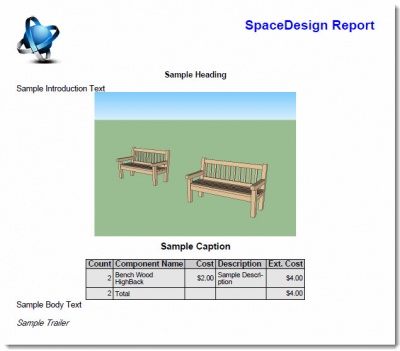
Report is stored in PDF format so it can be easily placed on web pages, printed, or emailed to clients. |
|
Select Entities from Attributes
| Select Entities from Attributes | |
|
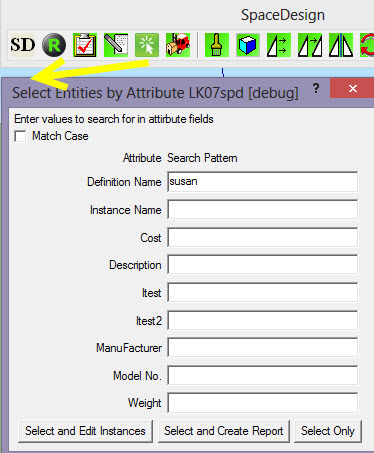
Select Components and Groups in your model based on their attributes. Using a wild-card search, you can select entities based on any attributes. After selection, you can also automatically load Edit Attribute Wizard, or run a report on just the selected items. |
|
Save Attributes in SKP model for Component
| Save Attributes in SKP model for Component | |
|
Attributes saved in the definition are retained when you export the components into a library
|
|
Calculate Areas for component
| Calculate Areas for component | |
|
Using the %area% substitution, you can use the area of a face in a component in calculations. |
|
No Limit on number of attributes
| No Limit on number of attributes | |
|
Use as many attributes as needed to generate your report. In SpaceDesign Pro you can place multiple attributes in a single report cell. |
|
Include an image of the SketchUp model in the report
| Include an image of the SketchUp model in the report | |
|
Image of model and attribute report and ability to customize report format. |
|
Define attributes based on size of component instances
| Define attributes based on size of component instances | |
|
Create multiple report definitions for multiple report formats.
|
|
Calculate extended cost or total weight of components
| Calculate extended cost or total weight of components | |
|
Create multiple report definitions for multiple report formats. |
|
Perform Calculations on attributes
| Perform Calculations on attributes | |
|
Calculations based on width, length or other fields
|
|
Filter Components for report
| Filter Components for report | |
|
Filter selected components only, and
also using the Skip If True attributes.
|
|
Drill into Groups and Components for nested components
| Drill into Groups and Components for nested components | |
|
Drill into sub components
|
|
Place multiple attributes in a report Cell
| Place multiple attributes in a report Cell | |
|
See: List Attributes |
|
|
| |

Add custom report rows
| Add custom report rows | |
|
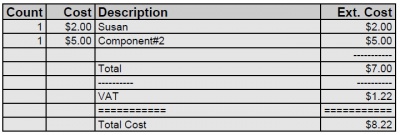
By adding some ruby code to your report definition, you can perform calculations based on totals and add additional rows to the report. See: Custom Report Rows |
|
Filter Components for report
| Filter Components for report | |
|
Filter selected components only, and
also using the Skip If True attributes.
Using the Filter tab to filter by any attribute.
|
|